Archive for the ‘Windows 8’ Category

Change selection box color in Windows 8 and 7

Thursday, August 9, 2012 posted by CSch

The selection box that appears when you hold the left mouse-button and drag your mouse away is blue by default on all versions of Windows. However you can change this setting by using two registry values in Windows 7 and Windows 8.

Open the registry by typing regedit into the Windows 7 menu search on Windows 7 or by right-clicking the bottom left corner on Windows 8 and opening a Run… prompt. Enter regedit into it.

- In the registry you will see a tree structure on the left pane – in it, browse for Computer\HKEY_CURRENT_USER\Control Panel\Colors and click it once.
- On the right pane, look for the value of HotTrackingColor. It is given in three values representing the ratios of red, green and blue that range from 0 to 255. Enter values that mix to the color you want to have (you can check the color values in a graphic editor).
- Do the same for he value of Hilight.

These two values also alter the color of hyperlinks and the color of highlighted text. After you set the values, close the registry and reboot your machine. Afterwards the selection box should have the color you chose.

The two different values each stand for a different part of the box – the first determines the color of the inner transparent space, the second determines the color of the non-transparent border. This means you can have different colors for each.

Disable Autoplay on Windows 7

Monday, July 23, 2012 posted by CSch

If you are one of those who like to deal with inserted DVDs, USB keys and other removable media yourself, the Autoplay feature of Windows will most likely do nothing but being clicked away by you.

If you want to save yourself a pop-up and a click you can disable Autoplay. To do so, open the menu and type in gpedit.msc. The group policies window will open and you’ll see a navigation pane on its left. Browse it for

Local Computer Policy > User/Computer Configuration > Administrative Templates > Windows Components > AutoPlay Policies

Pick User or Computer Configuration depending on the range you want your settings to have. On the right pane, there should now be some settings, on of them being Turn off AutoPlay. DOuble-click it for the configuration window to open.

On the left, click the Enabled radio button. On the options pane you can choose between turning AutoPlay off for all media or just for CDs or removable media drives (since those are the most common I’d recommend to choose that). When you’re done, click Apply and exit the group policies. Next time you insert something you won’t be bothered with pop-ups.

Skip Metro startscreen on Windows 8 with ClassicShell 3.5.1

Tuesday, July 17, 2012 posted by CSch

Whether you want to use Metro in all its glory is up to you of course but for those who want avoid this interface as thoroughly as possible, version 3.5.1 of ClassicShell brings a useful new feature: it can now get you around the first instance of the metro startscreen that you are presented with directly after login. Combined with its formidable start-button it makes Windows 8 look nearly like Windows 7, saving you the muddle of learning how to use a touch-interface on your desktop computer.

To install ClassicShell 3.5.1, download it from http://sourceforge.net/projects/classicshell/files/Version%203.5.1%20general%20release/ClassicShellSetup_3_5_1.exe/download and follow the installer.

The startscreen should be disabled by default – if you just want the start-button, you can turn on the start-screen again by opening the menu and selecting Settings > Classic Start Menu. Afterwards click on the All Settings radio button ond go to the General Behaviour tab.

To enable Metro welcoming, deactivate the Skip Metro screen checkbox.

German keyboards are usually QWERTZ keyboards, named after the first line of letters up to the first that differs from the English layout, which is QWERTY.

You can switch between these two using the key combination Alt + Shift.

This switch may be the cause of your keyboard behaving strangely – for example if you pressed the combination by accident. In this case z would be replaced by y and nearly every special character would be mapped differently. Try to switch layouts if you experience that.

Powershell scripts can be run on any Windows system as long as they are run from the ISE by pushing the green play button but as soon as you want to run it from the cmd or the desktop file you’ll get hit by an error:

script1.ps1 cannot be loaded because running scripts is disabled on this system. For more information, see about_Execution_Policies at http://go.microsoft.com/fwlink/?LinkID=135170

This error happens due to a security measure which won’t let scripts be executed on your system without you having approved of it. You can do so by opening up a powershell with administrative rights (search for powershell in the main menu and select Run as administrator from the context menu) and entering:

set-executionpolicy remotesigned

Returnvalue: 2147749891 in wmi EnableStatic method

Wednesday, June 13, 2012 posted by CSch

Successfully using the EnableStatic method for example in powershell always gives the Returnvalue 0. If that is not the case, something will most likely have gone wrong.

If you are returned the value 2147749891, this is a sign for a lack of administrative rights. The action you want to perform with your script most likely goes beyond the rights of a normal user which is why you need to run your script as administrator.

Returnvalue: 2147786788 in wmi EnableStatic method

Tuesday, June 12, 2012 posted by CSch

Successfully using the EnableStatic method for example in powershell always gives the Returnvalue 0. If that is not the case, something will most likely have gone wrong.

If you are returned the value 2147786788, this is a sign for a write lock of some sort, meaning you have to look for running processes that are already using your target object. Most likely you just need to close the network configuration windows if you still have them open.

Instantly hide and show taskbar in Windows 7 on auto-hide

Friday, May 11, 2012 posted by CSch

By ticking the Auto-hide the taskbar checkbox in the taskbar properties you can make the taskbar hide itself if you don’t hover your mouse over it’s position – this gives you a bit of extra space, especially for wide screens.

One problem you might have though is that the slide animation is quite slow and there is no registry key for speeding things up. One thing you can do however is to switch off the animation completely so that the menu hides and reappears instantly. To do so,

- go to Control Panel > System and Security > System > Advanced System Settings > Advanced (tab) > Performance Settings… > Visual Effects (tab)
- Uncheck Fade or slide menus into view
- Apply changes

Configure static local IP on Windows 7

Thursday, May 10, 2012 posted by CSch

By default, your Windows system gathers all information on your connections automatically so that it works out of the box when you plug in your LAN wire or put on your router or hotspot. The subnet and gateway are detected and you are given one of the free local IPs and your provider’s DNS Server.

That works really good in most cases but in working environments or during LAN parties etc. you will most likely need a static local IP so you don’t conflict with other machines in the network and your IP stays the same even after restarting the router or unplugging the system. To configure a static local IP, first find out what network data you currently use.

To do that, open the start menu and type cmd. In the command line interface, enter

ipconfig

You will be shown your current IP, the subnet mask and the gateway:


Leave the command line window open since you will need those data if you don’t know them by heart.
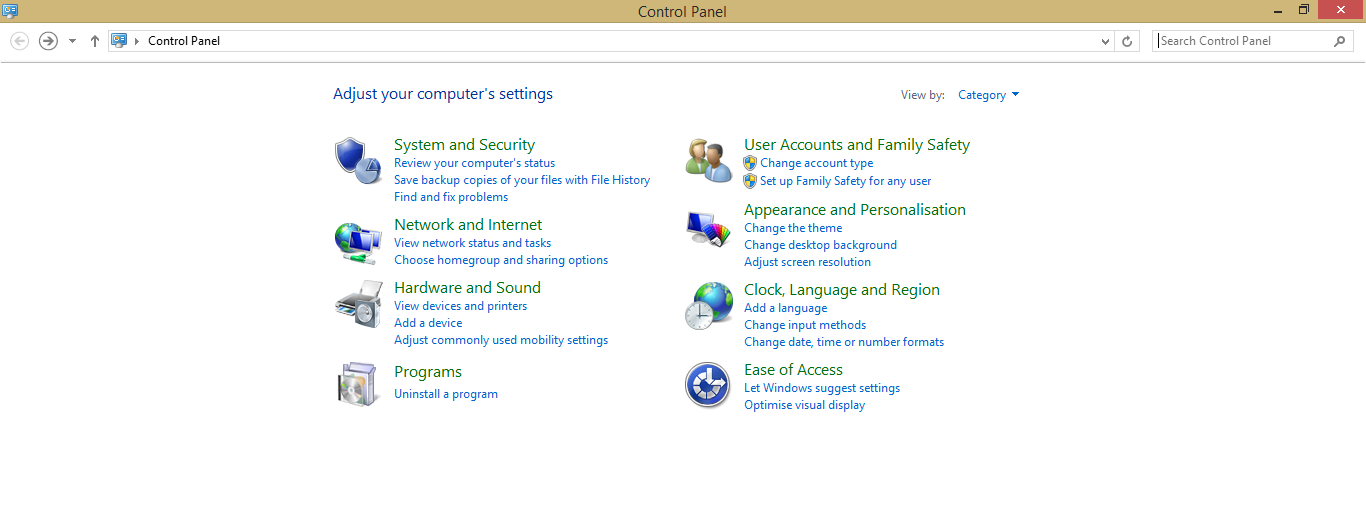
Next, open the Control Panel. Click View network status and tasks:


You will be shown your active network here. Click on the on you are currently using:


On the window that appears, click on Properties:


Select Internet Protocol Version 4 (TCP/IPv4) and click Properties again:


This is the place where you configure your IP properties. Select Use the following IP address and enter the free IP that you want to use (that can be the address you were already using since you now know that it isn’t used by any other machine in the network). Enter the subnet mask and the gateway you were shown in the command line:


By not obtaining the IP address automatically you also are deprived of the option to obtain the DNS servers automatically. You now have to enter a primary and secondary DNS Server of your choice – I use Google’s servers here (DNS servers are there to kind of translate domains like example.com into IP addresses, so you are displayed the correct websites upon entering their domain in a web browser – there are public DNS servers offered like the ones I use above; feel free to take the same of look for others).

Windows Experience Index scale changes on Windows 8

Tuesday, May 8, 2012 posted by CSch

The Windows Experience Index is a tool found on the system properties window that determines the performance of your computer’s hardware by running tests on them. The values are set on a scale with a maximum of 7.9 on Windows 7. The base score is determined by the system’s bottleneck score.

Since Windows 8, the scale ranges up to 9.9, changing your old score on the same system. This is why your computer may score worse with a Windows 8 system than with your old Windows 7 system. My score went from 4.6 to 4.2 from Windows 7 Enterprise to Windows 8 CP with the same hardware installed:

Windows 7 Enterprise:

Windows 8 Consumer Preview