FAQforge

  • Home

Categories

  • iPad & iPhone
  • Linux & Unix
    • Basics
    • Controlpanels
      • ISPConfig 2
      • ISPConfig 3
    • Distributions
      • CentOS
      • Debian
      • Ubuntu
    • Server
      • Email
      • FTP
      • MySQL
      • PostgreSQL
      • Webserver
    • Virtualisation
  • Mac OS X
  • Programming
  • Uncategorized
  • Windows
    • Vista
    • Windows 7
    • Windows 8
    • XP
  •  

Tags

7 apache automatic boot change cinnamon consumer customize Debian delete desktop disable files Firefox install ISPConfig 2 ISPConfig 3 Linux & Unix Linux & Unix manager menu metro mint MySQL OpenVZ password postfix powershell preview pure-ftpd registry remove screen script search Shell system Thunderbird Ubuntu virtualbox Vista Windows Windows 7 Windows 8 XP

Meta

  • Log in
« PowerShell script for toggling network configuration between dynamic and static on Windows 7
Mint Cinnamon: Change main menu label »

Change account picture in Linux Ubuntu and Mint

Monday, June 18, 2012 posted by CSch
Tweet

Other than in Windows, the account picture in Ubuntu and Mint isn’t displayed in the login-screen but everytime you enter your password for authentication as well as in the user selection applet in Ubuntu.
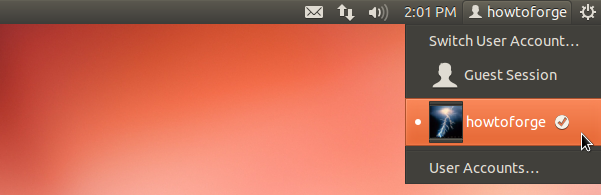
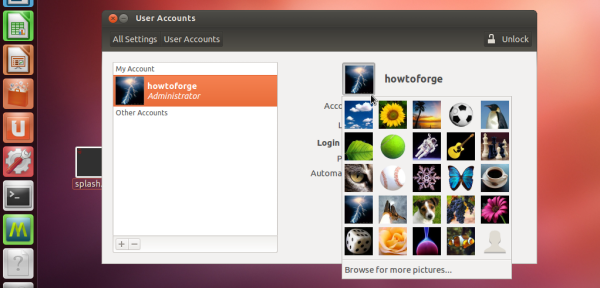
To change it, open the main menu and type in user accounts. On the window that pops-up upon opening the application, click on the head-icon on the right and select a new picture from the list or browse for more pictures.
Be Sociable, Share!
  • Tweet
Tags: account, avatar, change, Linux & Unix, mint, picture, Ubuntu
This entry was posted on Monday, June 18th, 2012 at 2:23 pm and is filed under Basics, Linux & Unix, Ubuntu. You can follow any responses to this entry through the RSS 2.0 feed. You can leave a response, or trackback from your own site.


Leave a Reply

Click here to cancel reply.

CAPTCHA-Image
Refresh

Imprint / Impressum - FAQforge is proudly powered by WordPress
Entries (RSS) and Comments (RSS)